
How to plan ISS transits
The ISS crossing the moon is not a subject you can turn up a few minutes late for. First, the track needs to cross the disc at all – from your exact location.
01Set the precise camera position
Find an accessible shooting spot on the map and place the crosshair carefully. A different position can turn a crossing into a near miss.
02Open ISS transits
Open the three-dot menu (…) and tap “ISS transits”. Open the filter icon at the top right. Choose “Sun only” or “Moon only” and “Transits only” if you want the station to cross the disc. The unfiltered list also includes close passes.
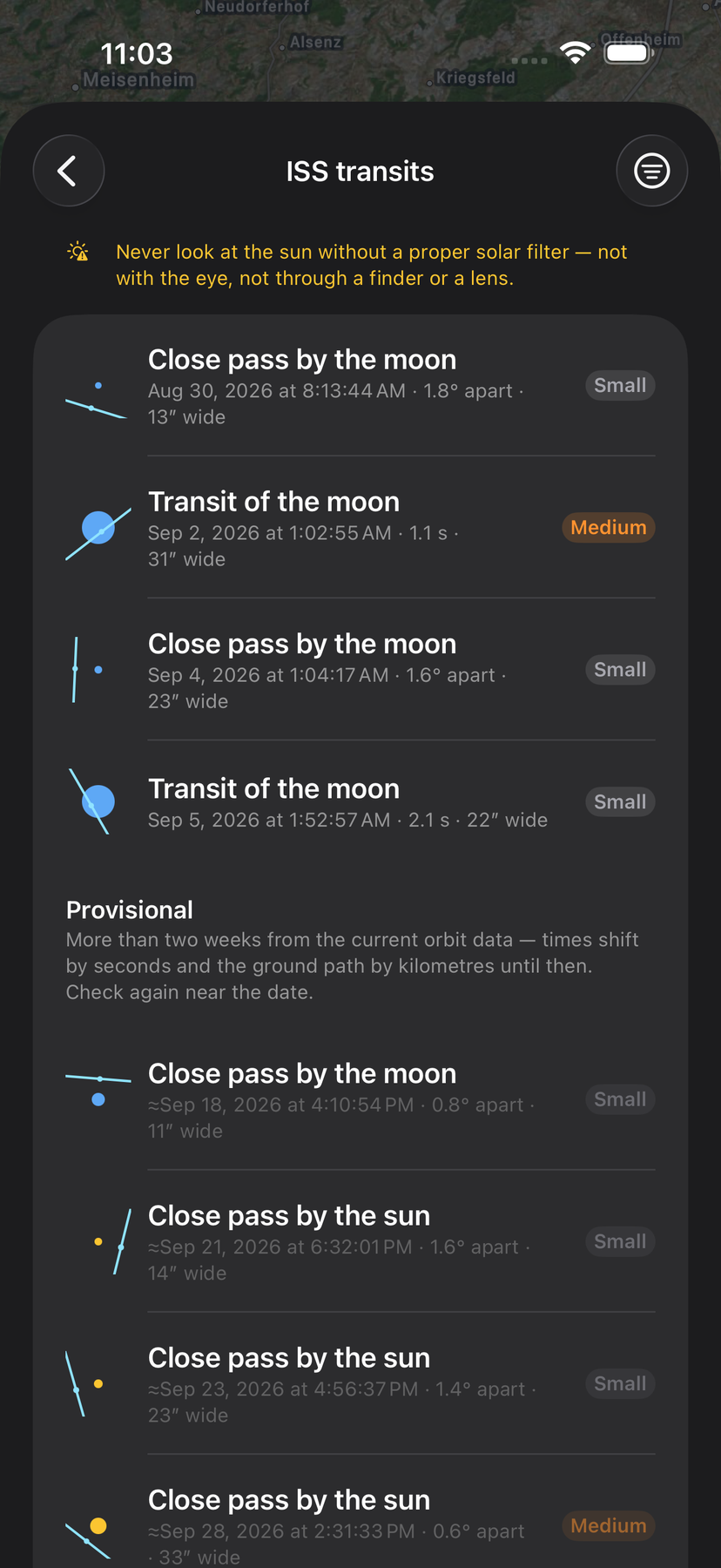
The list separates real transits from close passes and flags uncertain distant dates. 03Compare duration and apparent size
Check the time, crossing duration and size in arcseconds. A larger station is a more rewarding photographic target. Small, Medium and Large badges help compare results but do not replace equipment planning.
04Preview the crossing
Tap the entry. Celeris jumps to the event, opens the 3D view and sets 800 mm. Check direction, altitude and any terrain in the way. This focal length is a preview setting, not an automatic recommendation for your camera and sensor.

Lunar transit at 800 mm. The blue ISS marker shows its position, not a silhouette drawn to scale. 05Check again close to the shoot
Revisit the planning location with current orbital data before travelling and on the day. Distant dates under “Provisional” are only an initial indication. Synchronise your camera or trigger clock and be ready in advance.
Orbital data changes. A saved date does not guarantee a later transit. For solar transits, securely fit a suitable solar filter in front of the optics; never look at the sun through unprotected optics. NASA guidance for safe solar viewing ↗